
Video Guides
How do I create a Customer?
Learn how to create and manage customers in PromoSoft.
This tutorial guides you through creating a new customer profile in PromoSoft.
1. Introduction
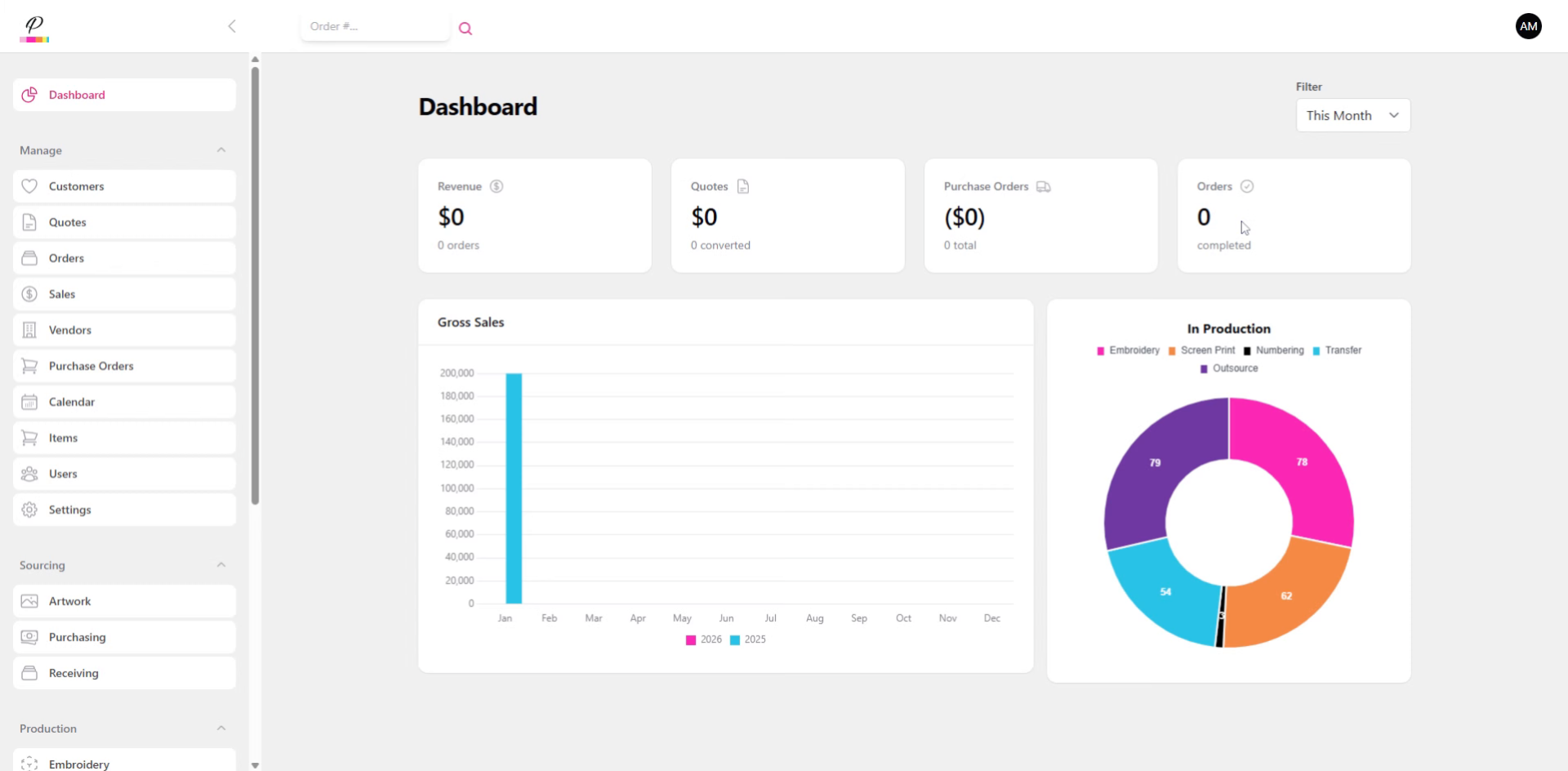
You will learn how to enter essential customer details and finalize the setup.
2. Navigate to Customers
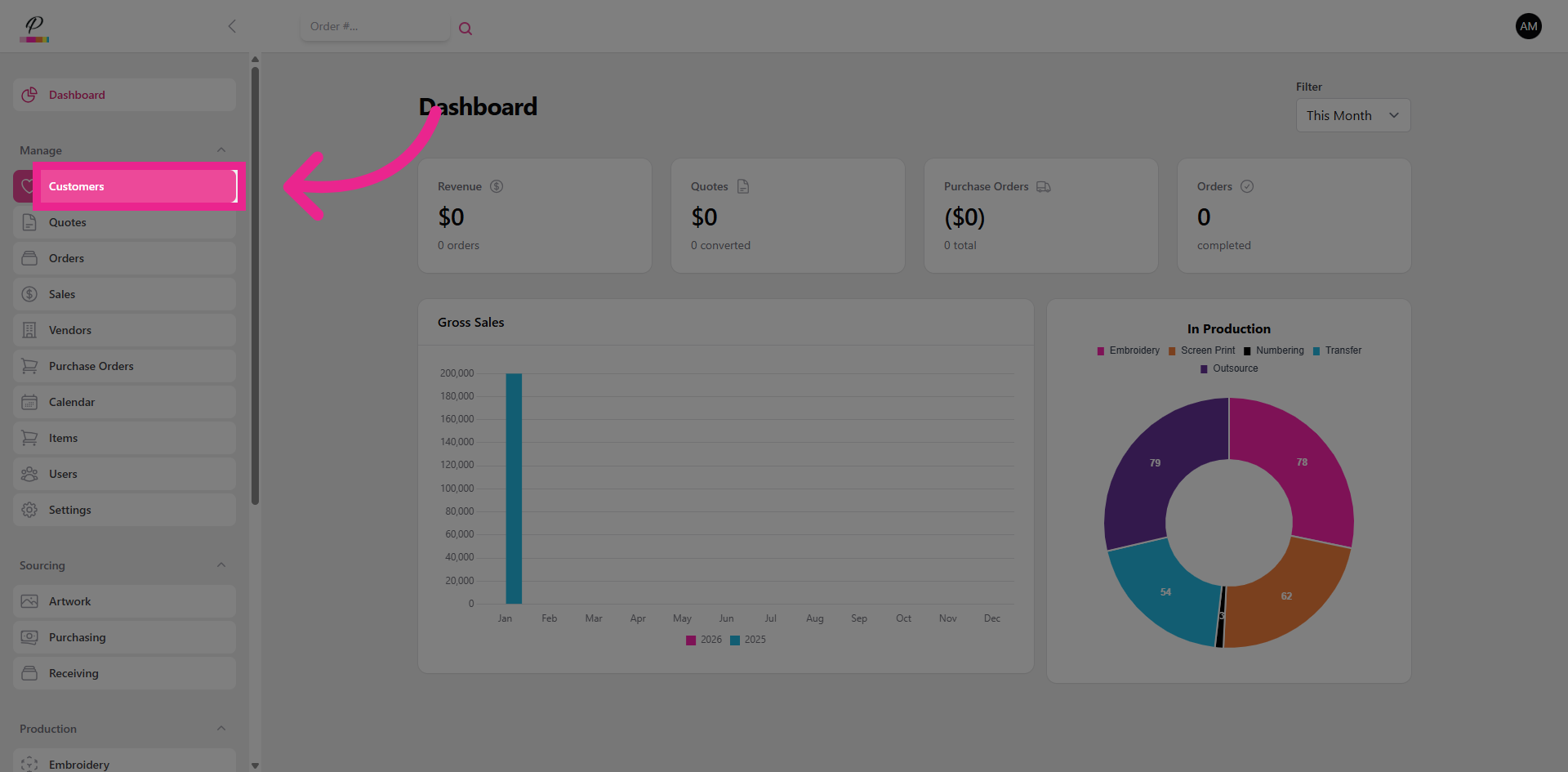
Click the Customers menu to access the customer management area where you can add new customer records.
3. Open New Customer Form
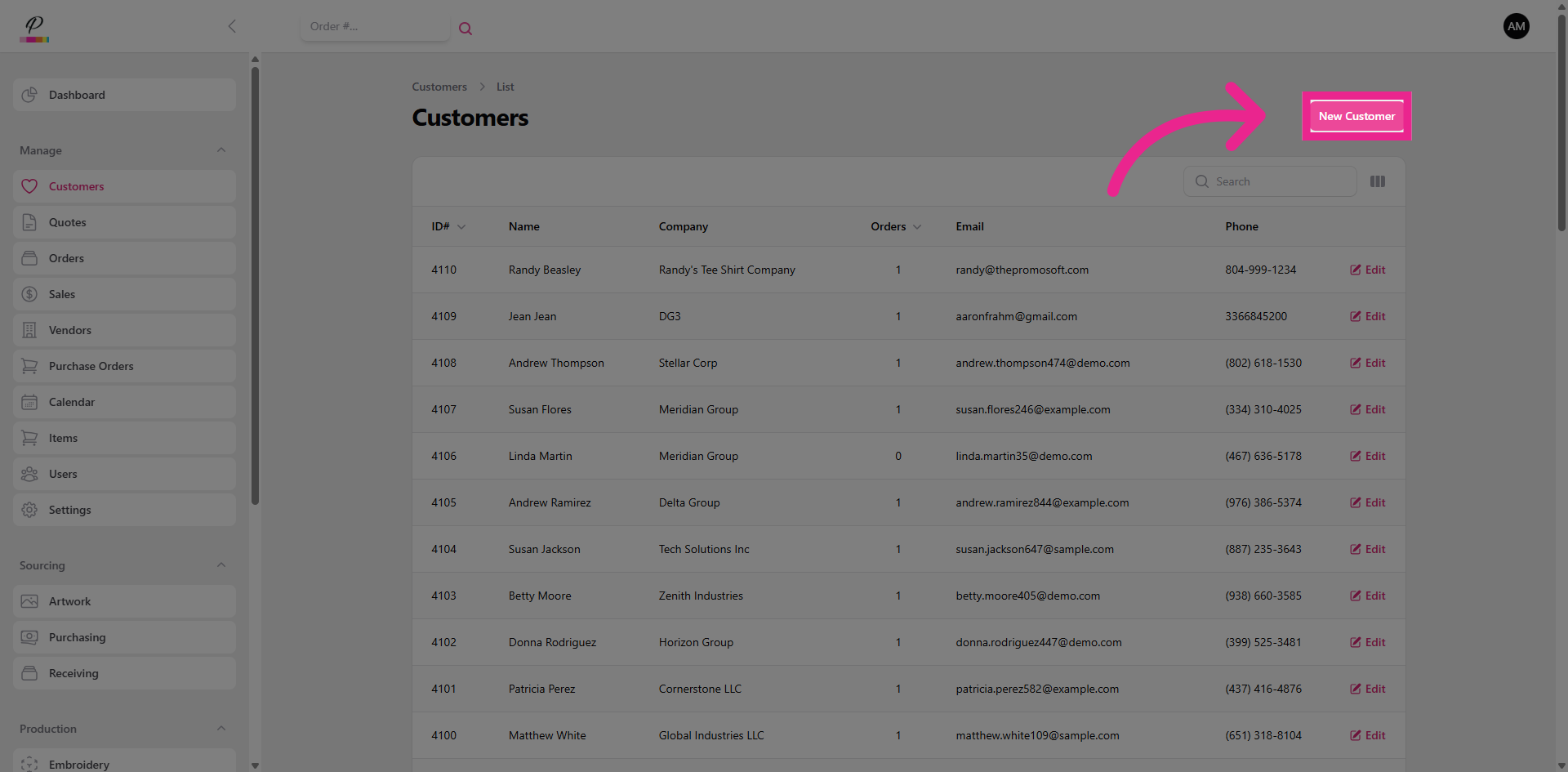
Click the New Customer button to open the form for creating a new customer profile.
4. Fill in all required fields
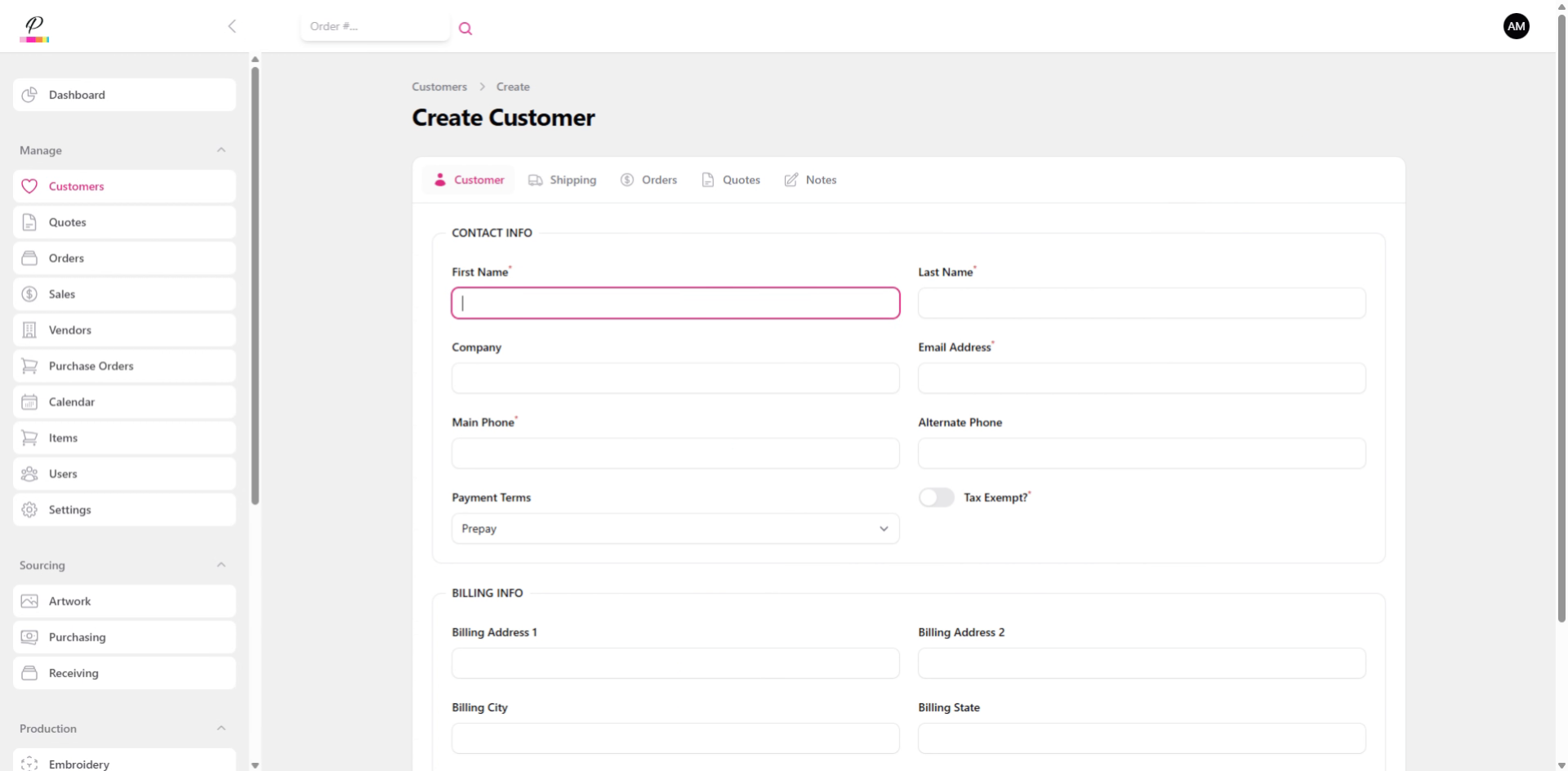
Fill in all required fields as well as any additional fields or toggles that may be relevant.
5. Create New Customer
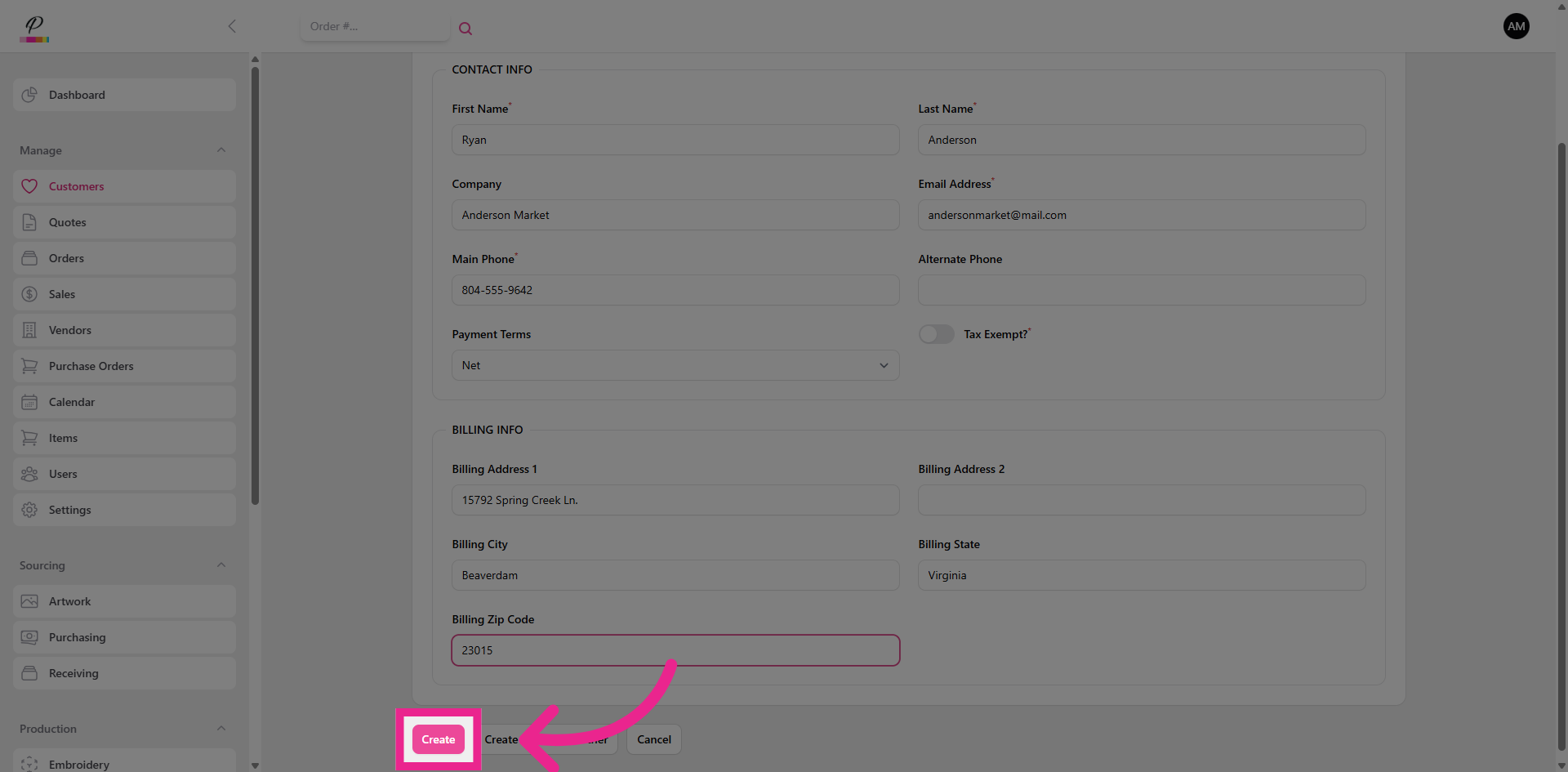
Click the Create button to save the new customer record and add it to the database.
6. Shipping Tab
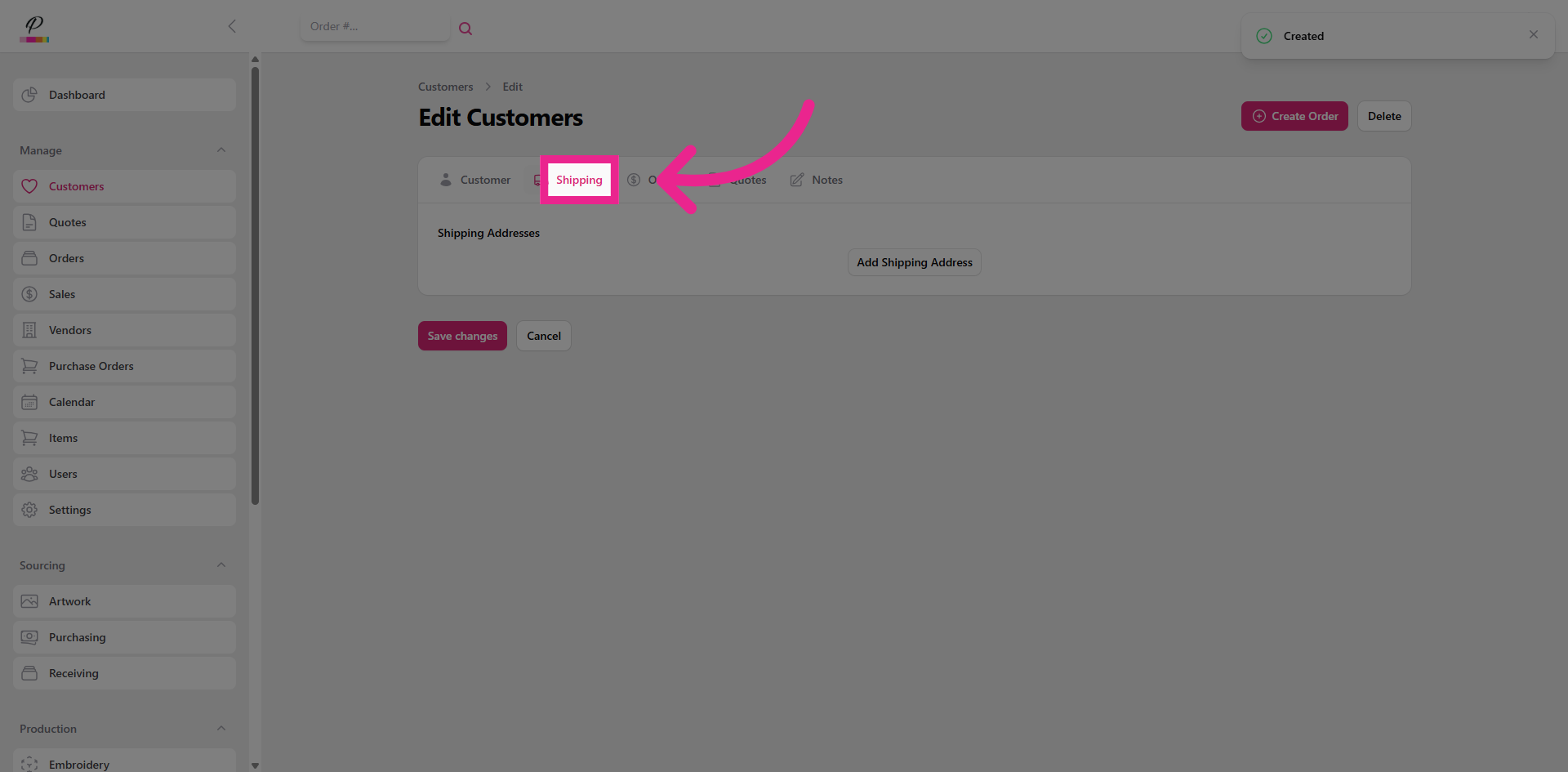
After the customer profile has been created, you can add shipping information if needed,
7. Orders Tab
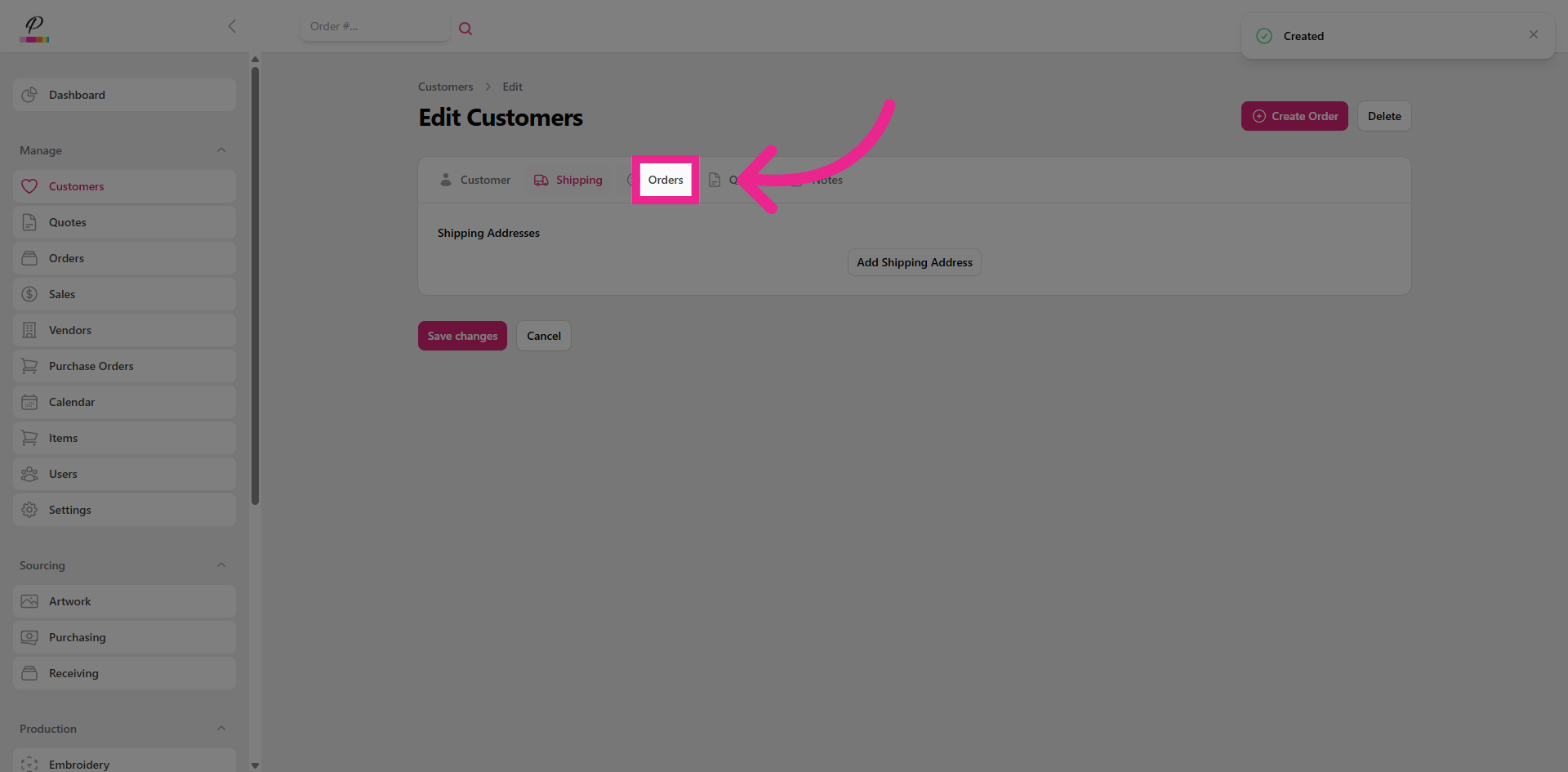
View or manage customer orders and purchase history,
8. Quotes Tab
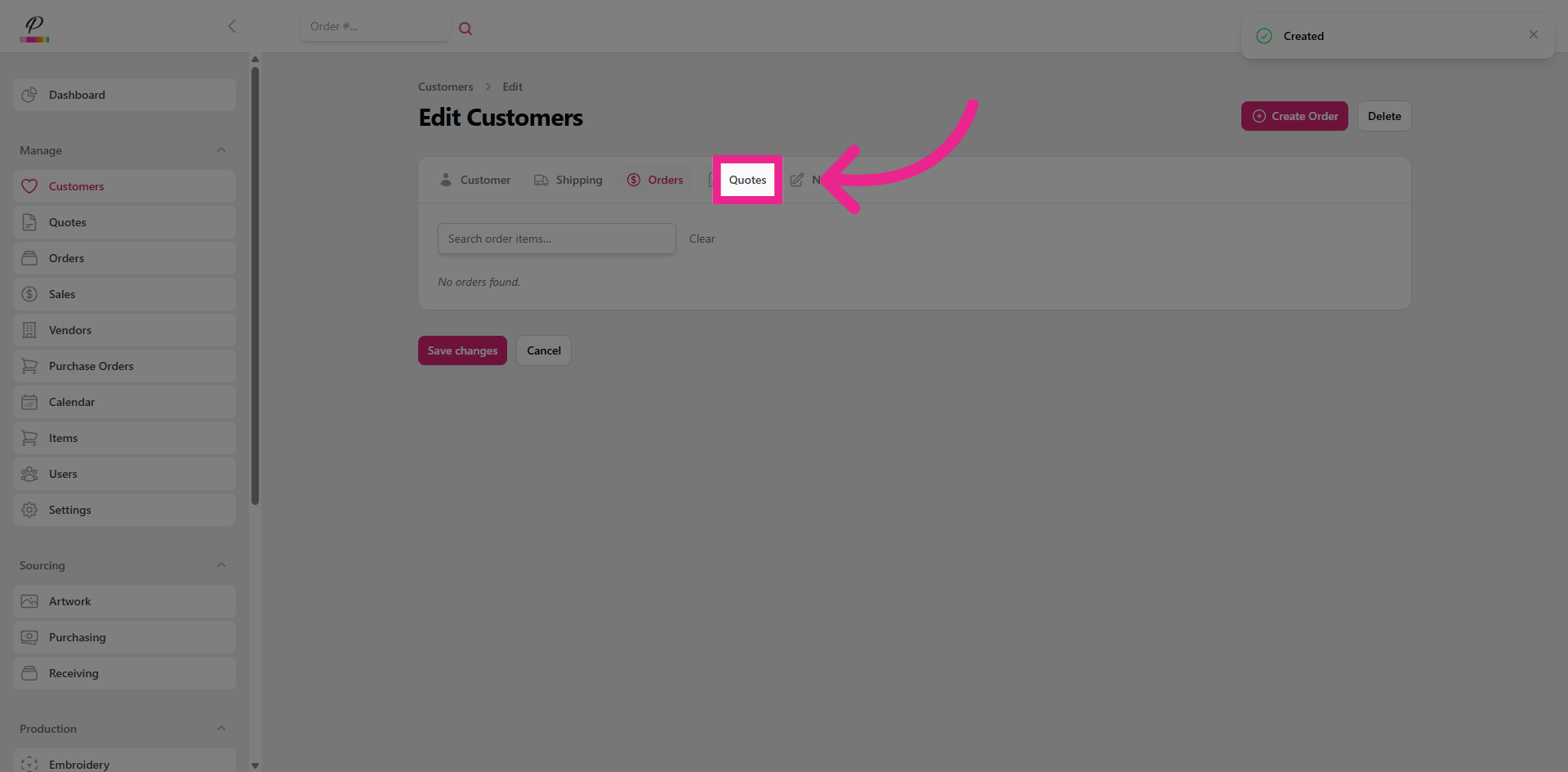
Or view quotes that you have created for the customer.
9. Notes Tab
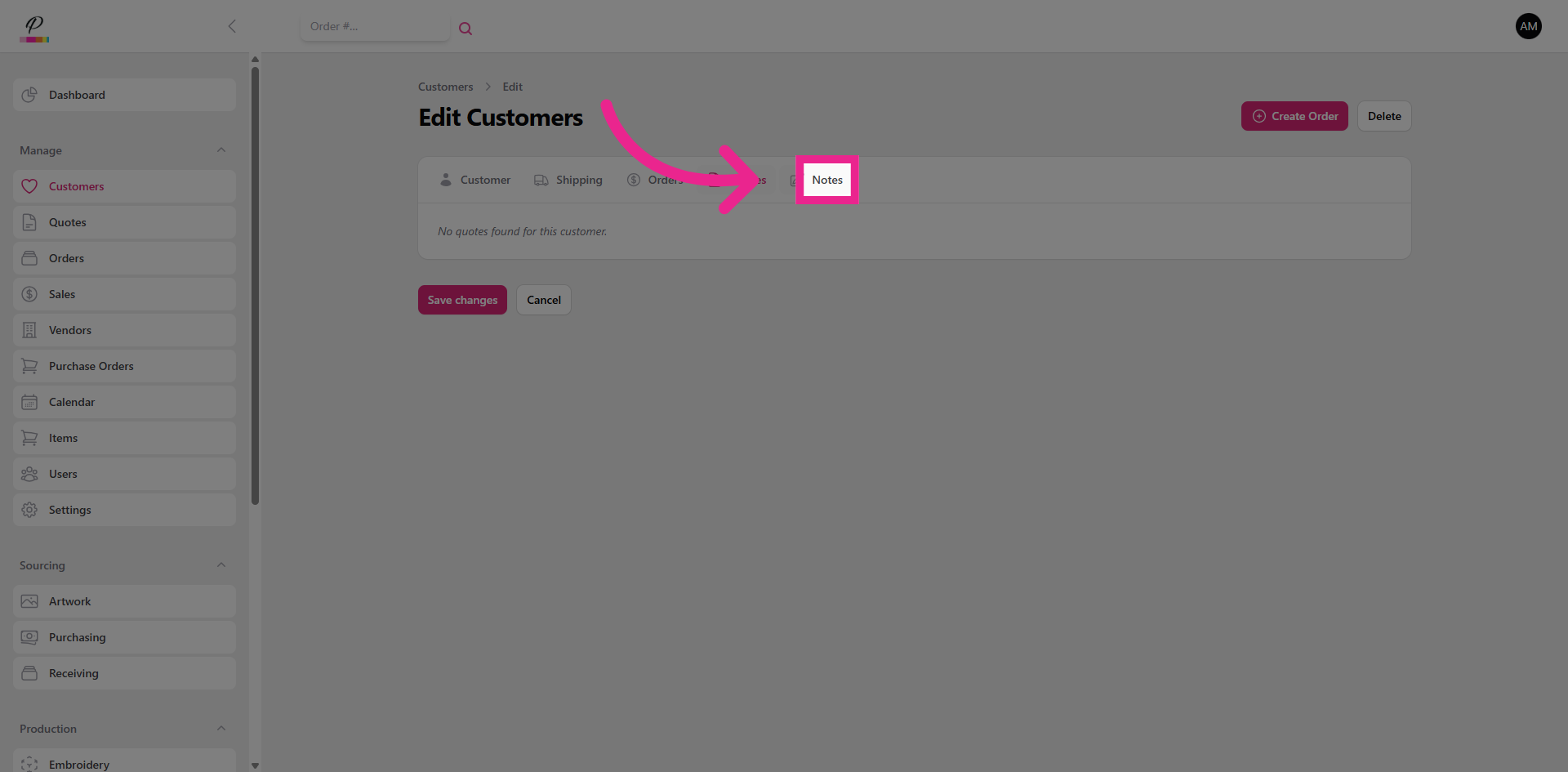
You can also select the notes tab to add any specific details related to the customer.
10. Save Changes
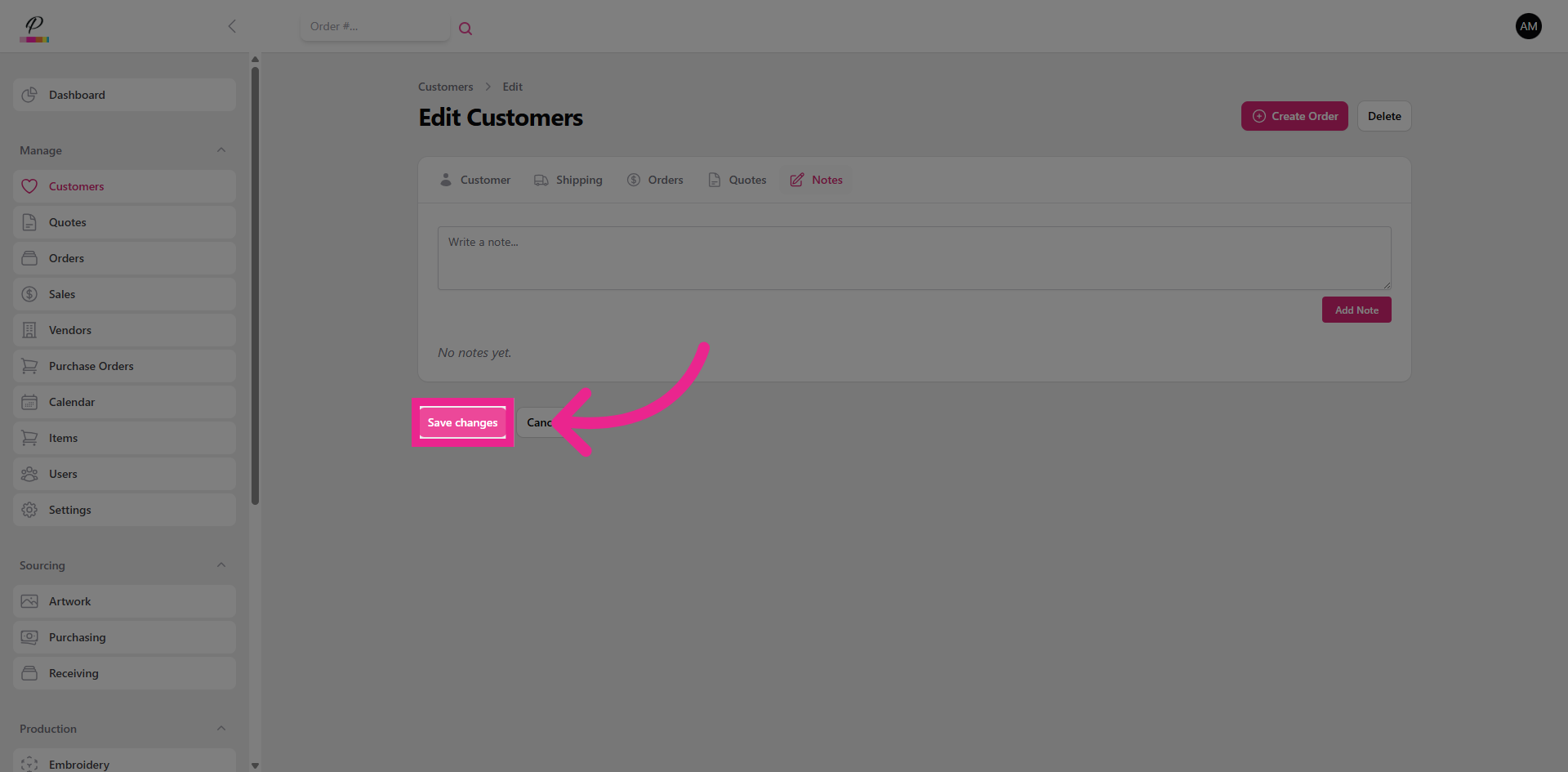
Always remember to click the Save changes button to finalize and apply all updates made to the customer profile. That's it! How easy was that?
Don't take our word for it.
I did 149 invoices TODAY!! Without the QuickBooks integration, I would have been here until doomsday copy and pasting

We are all hands on deck with production since the PromoSoft integration, and appreciate the customizations. THANK YOU!

We could not haved scaled without the PromoSoft system, it has been absolutely essential to our growth.